
Admin, Settings, and Account Management
Account security, roles, and audit logs
How to configure account language, timezone, user roles, and permissions before granting access to agency data.
Product Screenshots
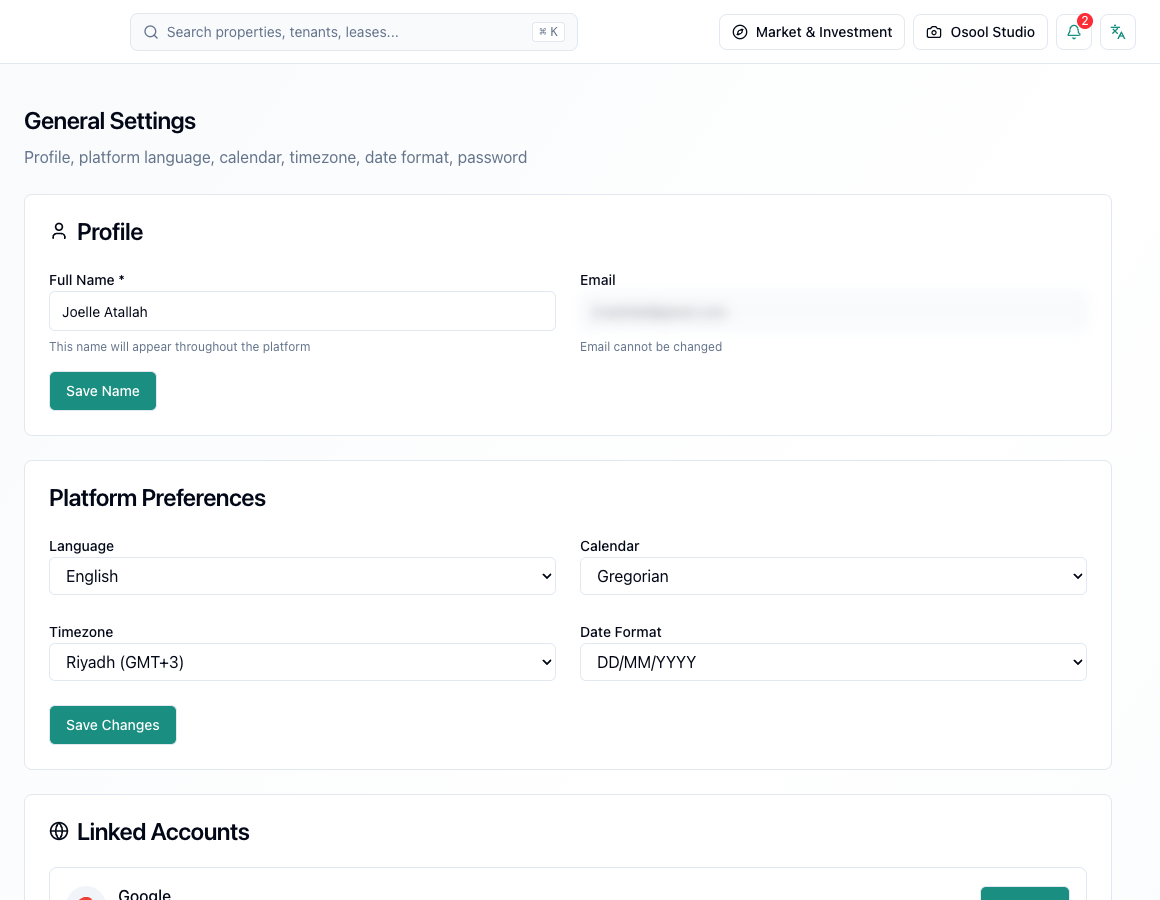
Start with account settings
Review name, email, language, calendar, timezone, and date preferences. These settings affect the user experience and how due dates and reports are read.
If account language changes, confirm the interface direction is correct: Arabic is RTL and English is LTR.
Choose the right role
Give each user the least permission needed for their work. The accountant needs collections and reports, marketing needs listings and images, and the manager needs wider supervision.
Do not share the agency owner account across multiple employees. Shared accounts make it difficult to know who performed an action.
- Owner
- Manager
- Accountant
- Operations staff
- Viewer
- Property owner
- Tenant
Audit logs
When audit logs are available, use them to review important changes to leases, payments, expenses, users, and settings. If a specific log is not visible, treat it as In Progress or Needs Product Review.
Monthly security review
Once per month, review active users, employees who left, high-permission accounts, linked accounts, language settings, and timezone settings.
Settings that affect every user
Review language, timezone, calendar, agency details, permissions, and linked accounts before investigating differences in dates, access, or reports.
Do not give broad permissions to users who do not need them. Excess permissions increase the risk of accidental financial or operational edits.
- Language
- Timezone
- Calendar
- Agency details
- Permissions
- Linked accounts
How to apply this inside the agency
Turn the article into a small dashboard action: open the related record, review the data, make the appropriate update, then document the outcome so the rest of the team can see it.
If the action involves a financial, regulatory, owner, or tenant-impacting decision, ask the responsible role to review it before final approval.
- Open the record
- Review data
- Take action
- Document outcome
- Escalate when needed
Product status and review needed
This is documented as an available workflow, but results can still vary by user permissions, agency settings, and data quality.
If a step described here is not visible in the agency dashboard, treat it as not enabled for your account and check with your admin or Product.
Related Articles
Admin, Settings, and Account Management
Roles and permissions
Why screens and actions differ based on the user role inside the agency.
Read articleAdmin, Settings, and Account Management
Agency settings, account, and public links
Settings that affect public identity, listings, and agency data.
Read articleTroubleshooting
Quick fixes for common issues
What to do when login fails, data is missing, or a listing cannot be published.
Read article