
Osool Studio
Run Osool Studio: images, credits, and export workflow
How to use Osool Studio to prepare marketing images for units while tracking credits, gallery output, and available sharing options.
Product Screenshots
When to use Studio
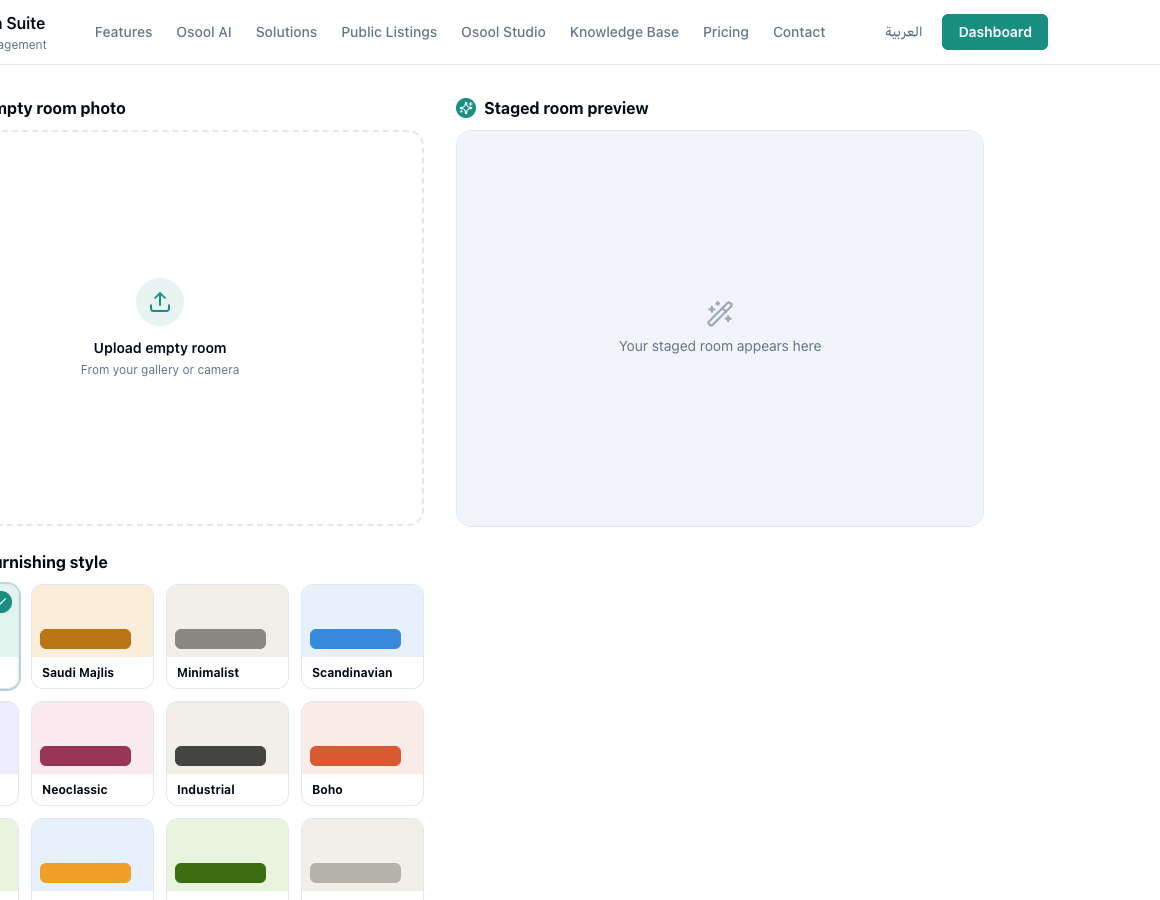
Use Osool Studio when a unit is empty, media quality is weak, or you need a more consistent visual identity before publishing. The goal is to help clients understand the space, not hide real defects.
Start with a clear original photo, then create a marketing version that helps the client imagine the use of the room.
Choose the right style
Choose style based on unit type and audience. Saudi Majlis may fit a villa or family apartment, while minimalist or Scandinavian may fit a modern apartment or temporary furnished unit.
Do not use an exaggerated style if price or finishing level does not support it.
- Upload a clear image
- Choose room type
- Choose style
- Review the result
- Save only usable images
Credits and gallery
Watch credits before running many images. If gallery or render history is available, use it to compare versions and avoid regenerating the same image repeatedly.
Export or sharing options depend on what is visible in the Studio UI. If an export or share button is not visible, treat it as In Progress or Needs Product Review.
Responsible usage
When using an AI-staged marketing image, do not imply that furniture physically exists if it does not. Clarity protects the agency reputation and reduces client disputes.
Image data before using Studio
Start with a clear original unit photo, then choose room type and a style that fits the audience. Review credits and gallery output before generating many versions.
Use AI-staged images clearly for marketing and do not present them as physical reality if furniture is virtual.
- Original image
- Room type
- Style
- Credits
- Gallery
- Clear usage
How to apply this inside the agency
Turn the article into a small dashboard action: open the related record, review the data, make the appropriate update, then document the outcome so the rest of the team can see it.
If the action involves a financial, regulatory, owner, or tenant-impacting decision, ask the responsible role to review it before final approval.
- Open the record
- Review data
- Take action
- Document outcome
- Escalate when needed
Product status and review needed
This feature or workflow is partial. Use only the controls visible in the interface and do not assume every option is available for every agency.
If a step described here is not visible in the agency dashboard, treat it as not enabled for your account and check with your admin or Product.
Related Articles
Osool Studio
Creating marketing images with Osool Studio
Use virtual staging to turn an empty-room photo into a review-ready marketing image.
Read articleOsool Studio
Brand consistency, export, and sharing options
What is currently available in Studio and what needs product confirmation around social publishing and sharing.
Read articleOsool Listings
Listing quality checklist
A checklist to review before publishing or sharing a listing with customers.
Read article