
Osool Listings
Activate listings and manage the agency public link
How to review the public link, published unit status, WhatsApp button, and checks before sharing the link with clients.
Product Screenshots
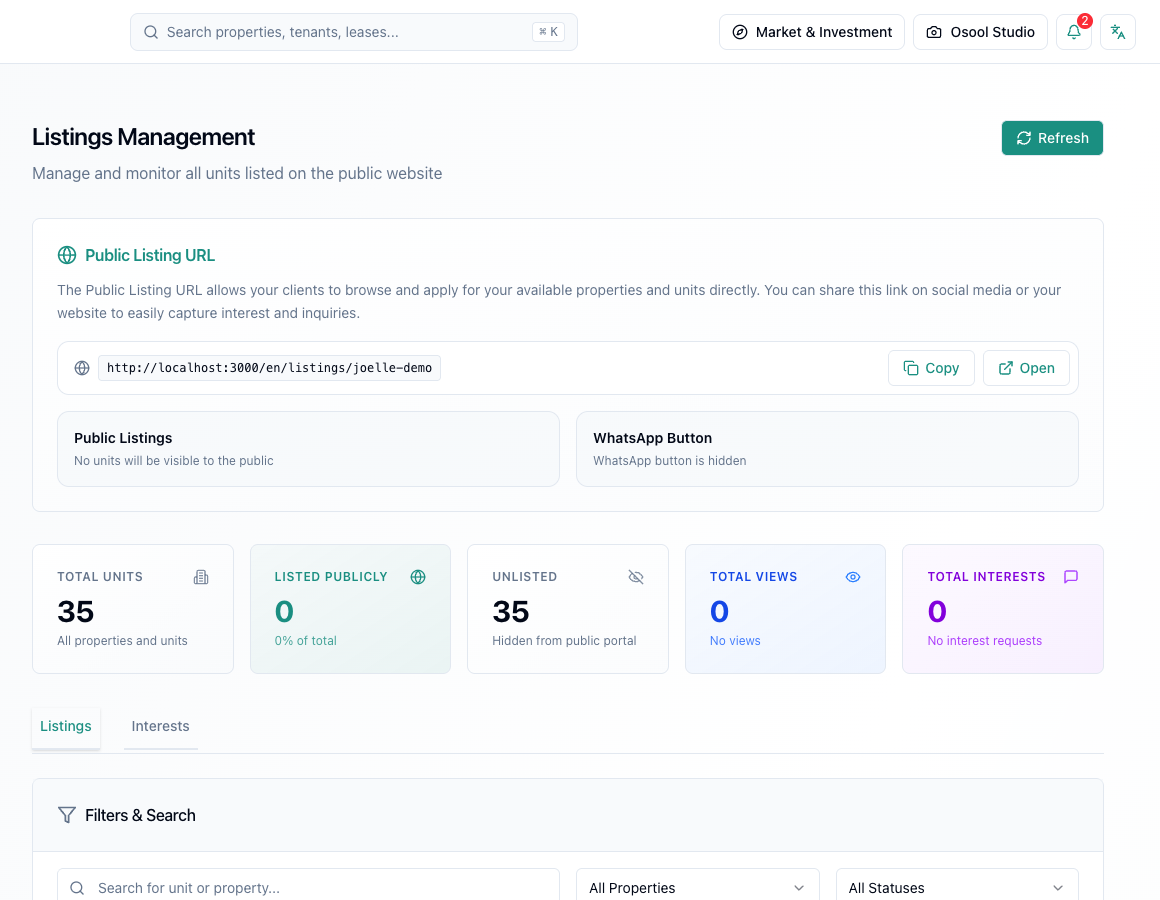
The public link is more than a URL
The public listings link is the agency storefront for available units. Before sharing it, confirm that published units are intentional and unfinished units are hidden.
Use copy or open actions to test the link as a client sees it, not only as you see it inside the dashboard.
Checks before sharing
Review unit name, price, district, images, description, availability status, and the WhatsApp button if enabled. Missing data can reduce inquiries or create repeated questions.
- Clear price
- Recent images
- Practical description
- Correct status
- WhatsApp button configured
- Unit linked to the right property
When to hide a unit
Hide a unit if it is rented, under maintenance, price is not approved, media is not ready, or the team has not agreed on listing details.
Temporarily hiding a unit is better than publishing an incomplete listing and receiving inquiries that cannot convert.
Regulatory precautions
If FAL or real estate advertising requirements apply to your agency, city, or listing type, review integrations before public publishing. If unclear, treat it as Needs Product Review or internal legal review.
Listing data that makes a difference
Review price, images, description, publish status, public URL, views, and interest requests before judging marketing performance.
If unit information is incomplete, the result will show up as weak inquiries or repeated client questions.
- Price
- Images
- Description
- Publish status
- Views
- Interest requests
How to apply this inside the agency
Turn the article into a small dashboard action: open the related record, review the data, make the appropriate update, then document the outcome so the rest of the team can see it.
If the action involves a financial, regulatory, owner, or tenant-impacting decision, ask the responsible role to review it before final approval.
- Open the record
- Review data
- Take action
- Document outcome
- Escalate when needed
Product status and review needed
This is documented as an available workflow, but results can still vary by user permissions, agency settings, and data quality.
If a step described here is not visible in the agency dashboard, treat it as not enabled for your account and check with your admin or Product.
Related Articles
Osool Listings
Creating and publishing listings
The workflow for publishing a public listing from an existing unit in the agency workspace.
Read articleSaudi Market Integrations
VAT, ZATCA, and Ejar readiness
What an agency should review before relying on VAT, e-invoicing, or Ejar workflows.
Read articleOsool Listings
Manage listing inquiries and follow-up
How to read interest requests and views, then turn them into organized follow-up instead of scattered WhatsApp chats and Excel files.
Read article