
Osool Listings
Manage listing inquiries and follow-up
How to read interest requests and views, then turn them into organized follow-up instead of scattered WhatsApp chats and Excel files.
Product Screenshots
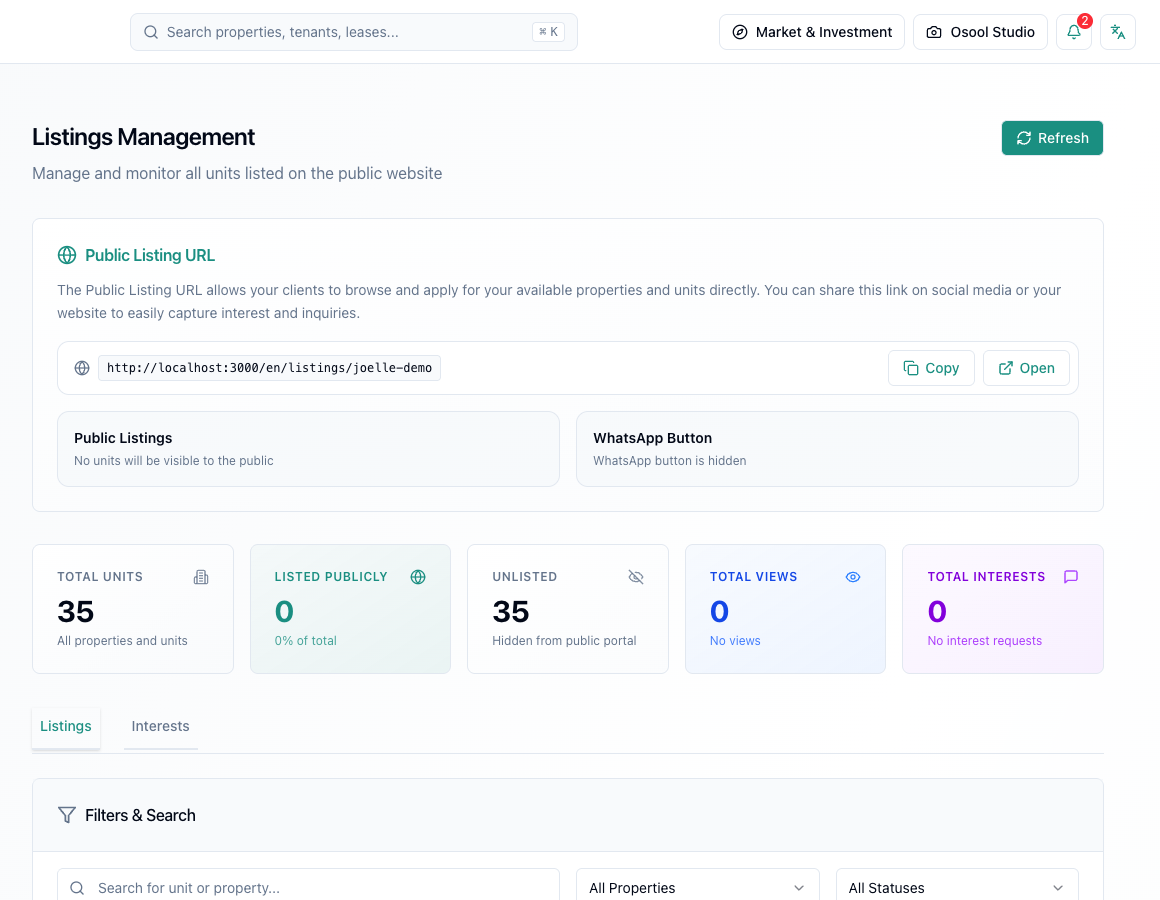
What the Listings dashboard shows
The Listings dashboard shows the public listings URL, unit count, published and unpublished units, total views, and interest requests. This helps you see whether the problem is the listing itself or the follow-up process.
If views are high and inquiries are low, review price, description, and images. If inquiries are high and closing is weak, review response speed and viewing scheduling.
Turn an inquiry into a workflow
When an inquiry arrives, connect it to the unit, review applicant details, choose the contact method, then record the result: interested, needs viewing, not suitable, or converted to lease.
The main benefit is that the team sees inquiry status from the Listings dashboard instead of searching across many WhatsApp chats.
- Link inquiry to the unit
- Review details
- Schedule viewing
- Record outcome
- Update listing status
Marketing quality signals
Watch views-to-inquiries, inquiries per unit, days without inquiry, and unpublished units. These signals help improve marketing before assuming the market is weak.
How this reduces WhatsApp and Excel sprawl
Instead of a spreadsheet of prospects and separate chats for each marketer, the unit becomes the follow-up center: images, price, description, inquiries, and communication status.
This does not stop the team from using WhatsApp to communicate. It stops WhatsApp from becoming the only operating record.
Listing data that makes a difference
Review price, images, description, publish status, public URL, views, and interest requests before judging marketing performance.
If unit information is incomplete, the result will show up as weak inquiries or repeated client questions.
- Price
- Images
- Description
- Publish status
- Views
- Interest requests
How to apply this inside the agency
Turn the article into a small dashboard action: open the related record, review the data, make the appropriate update, then document the outcome so the rest of the team can see it.
If the action involves a financial, regulatory, owner, or tenant-impacting decision, ask the responsible role to review it before final approval.
- Open the record
- Review data
- Take action
- Document outcome
- Escalate when needed
Product status and review needed
This is documented as an available workflow, but results can still vary by user permissions, agency settings, and data quality.
If a step described here is not visible in the agency dashboard, treat it as not enabled for your account and check with your admin or Product.
Related Articles
Osool Listings
Real estate marketing workflow and reducing WhatsApp and Excel handoffs
How public links and inquiry tracking reduce scattered conversations and spreadsheets.
Read articleOsool Listings
Listing quality checklist
A checklist to review before publishing or sharing a listing with customers.
Read articleOsool Listings
Activate listings and manage the agency public link
How to review the public link, published unit status, WhatsApp button, and checks before sharing the link with clients.
Read article